DaVinci-Resolve-MediaImportRules is a free plugin for DaVinci Resolve Studio that applies actions to clips in bulk, based on specified metadata fields. It’s my take on one of the most useful features from the FilmLight suite.
Where the idea came from
In FilmLight’s Daylight, media import rules let you describe once what should happen to a given kind of clip. Then every time new media comes in, the software sorts and prepares it for you. On a dailies or grading setup, that removes a lot of repetitive clicking, and a whole family of small mistakes with it.
Resolve has nothing like it built in. Lately there’s been a real frenzy of scripts and plugins aimed at turning Resolve into a tool that fits professional workflows, and this is one of my contributions. My version is more minimalist than the original, but it covers my own needs for now.
How a rule works
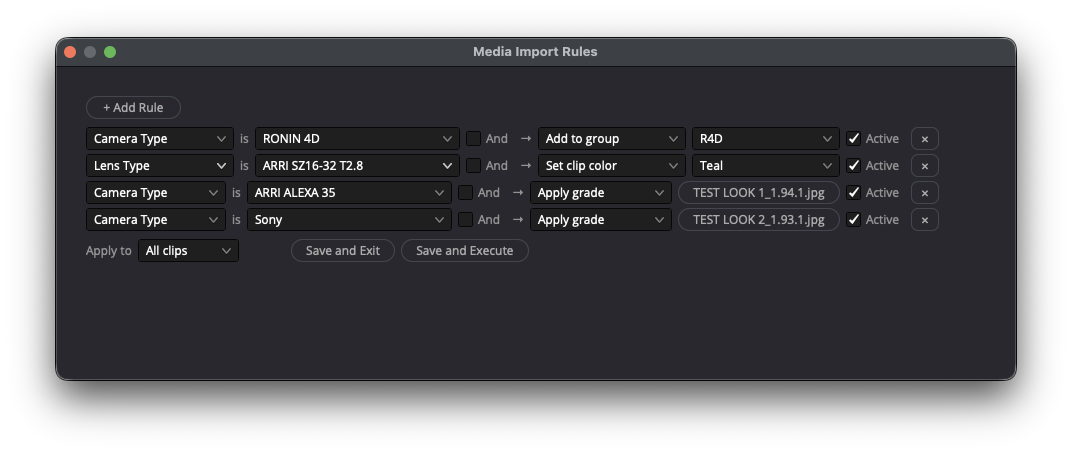
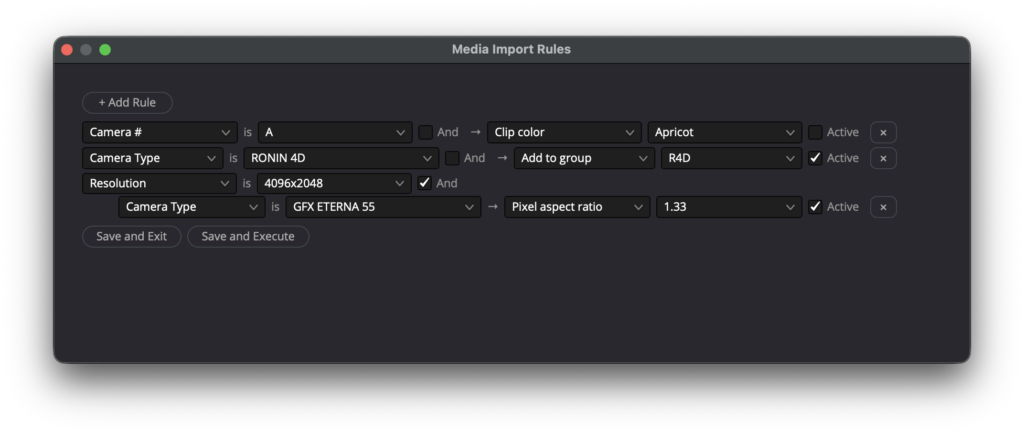
Every rule reads like a sentence: if a clip property is a given value, then do something to that clip. For example, if Camera # is B, set the clip color to Orange.
- Two conditions when you need them. Tick “And” to add a second condition; both must match. If Shot Frame Rate is 50 and Camera # is C, add a red flag.
- Only real values. The values you choose from are read from the clips already in your Media Pool, so you only ever pick what’s actually in the project.
- Rules you keep. Each rule can be switched on or off without deleting it, and your rule set is saved between sessions.
- All clips or a selection. Rules run on every clip in the project, or only on the clips selected in the Media Pool.
The plugin opens from Resolve’s Workspace → Workflow Integrations menu. You set or tweak your rules, then hit Save and Execute, or just press Enter. Escape saves and closes without running anything.
What it can match, and what it can do
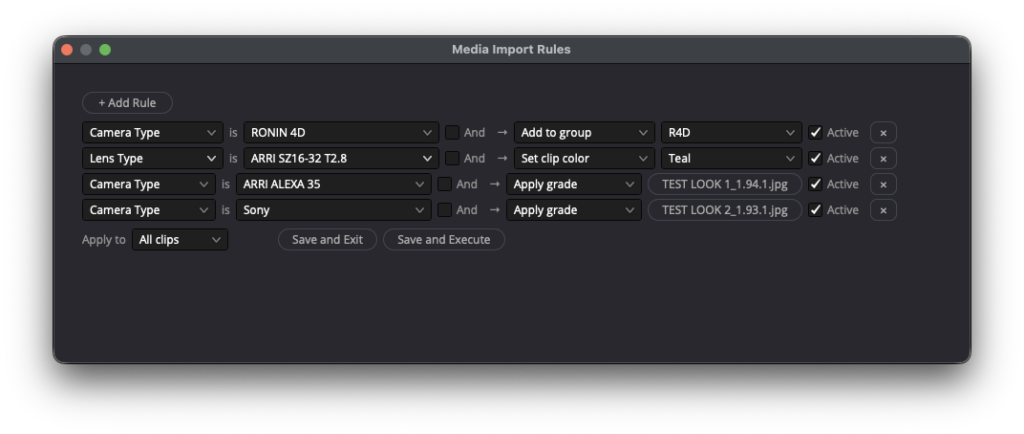
Rules can filter on eight clip properties:
- Resolution
- Shot frame rate
- Video codec
- Camera # (the camera letter)
- Camera type (the camera model)
- Lens type
- Lens number
- LUT used
And matching clips can get one of five actions:
| Action | What it does |
|---|---|
| Add to group | Assigns clips to a Color Group. The group must already exist in the project. |
| Apply grade | Applies the node tree from a DRX file you pick. |
| Set clip color | Sets the clip color in the Media Pool. |
| Add flag | Adds a flag of the chosen color. |
| Pixel aspect ratio | Sets the PAR, as in Clip Attributes: Square, 1.25, 1.33, 1.5, 1.8 or 2.0. |
Color groups and grades live on timeline clips, so those two actions apply across every timeline in the project. The other three act directly on the Media Pool.
Known limitations
The feature I miss most is applying an Input Sizing Preset. It would be the cherry on the cake, but for reasons I haven’t figured out, the matching field in Resolve’s scripting API seems to be read-only. It’s on standby until I find a way around it.
- Metadata has to be there. Rules can only match what Resolve actually reads into each field. Lens and LUT metadata in particular don’t always land where you’d expect, so check your clips first.
- Values are read at launch. If you import new clips while the plugin is open, close and reopen it to refresh the lists.
- Two conditions per rule, maximum.
Get it
Media Import Rules is free and open source under the MIT license, on GitHub. It needs DaVinci Resolve Studio 18 or later and nothing else: no extra packages to install.
Installing it means copying a single file into Resolve’s Workflow Integration Plugins folder and restarting Resolve. The README lists the folder for macOS, Windows and Linux.
If you have an idea for the Input Sizing problem, or a rule you’d like to see, open an issue on GitHub or get in touch.

Media Import Rules for DaVinci Resolve is published on Github